


Agents in SharePoint need no activation. If your users hold a Microsoft Copilot licence, agents are already available to them, and the interesting administrative question is not how to switch them on. It is what you actually control once forty of them exist across your tenant.
There are five levers. Four of them have a documented gap between what the control is named and what it does, and two of those gaps will let you believe you have restricted something you have not.
In this post: Prerequisites · How an agent sees your data · 1. Licensing, and the toggle that overreaches · 2. The .agent file, and the label you cannot apply · 3. Restricted Content Discovery · 4. Restricted Access Control, and its two traps · 5. Blocking an agent, which blocks less than it says · What this adds up to · Who needs to do something? · Related reading
Prerequisites
- SharePoint Administrator, or SharePoint Advanced Management Administrator for the governance pieces. The admin-centre agent inventory additionally needs a tenant or AI admin role.
- SharePoint Advanced Management for controls 3 and 4. One Microsoft Copilot licence assigned to any user in the tenant is enough to unlock it, and that user does not need to be an administrator.
- The current SharePoint Online Management Shell for the cmdlets below.
- Microsoft Purview if you intend to use DLP against agent content.
How an agent sees your data
Everything else follows from this. An agent in SharePoint responds to each user according to that user’s permissions on the underlying sites, pages and libraries. Two people can ask the same agent the same question and get different answers, because the agent is reading as them, not as itself.
If someone can open the agent but has no access to the site it references, the agent’s answers for that person simply exclude that content. Agents do not widen anyone’s reach.
That is reassuring, and it is also why agent governance quietly becomes permission governance. An agent pointed at an overshared site is a very efficient way of discovering exactly how overshared it was.
1. Licensing, and the toggle that overreaches
Access to agents comes from a Microsoft Copilot licence, or from a pay-as-you-go billing policy attached to a security group for users without one. Those are the two front doors.
There is also a finer control that looks perfect and is not. In the Microsoft Copilot licence details page you can turn Microsoft Copilot for SharePoint on or off per user, which reads like a way to let someone use Copilot in Teams while keeping them away from SharePoint agents.
It does that. It also, per Microsoft’s own documentation, disables Copilot in OneDrive and the SharePoint page authoring Copilot for the same user. Three capabilities, one switch, one name that mentions only the first. If you are using this to scope access, confirm the person does not need the other two before you flip it.
2. The .agent file, and the label you cannot apply
An agent is a file. Specifically a .agent file sitting in a document library, and the permissions on that file decide who can open or edit the agent. Anyone who can create files on a site can create an agent there. Agents also do not publish themselves into any list: users navigate to the file the way they would a spreadsheet, though a site owner can nominate one main agent that opens from the Agent icon in the global header.
Treating agents as files is genuinely useful, because your existing library permissions already apply. The gap is in labelling. You cannot yet apply a sensitivity label directly to a .agent file. If you want Purview DLP to govern the agent files themselves, Microsoft’s guidance is to write conditions against the .agent extension instead of against a label.
For the content agents draw on, labels do work: a DLP policy using Content contains with a Sensitivity labels condition keeps matching items out of responses. One detail to know before you rely on it, because it surprises people: the citations in a response can still list an identified item even though the item’s content was not used to answer.
3. Restricted Content Discovery
This is the clean one, and the only lever that switches agents off at a site rather than narrowing what they can see. Flag a site with Restricted Content Discovery and users lose the Agent icon in the global header on that site. They cannot use the ready-made agent, cannot create new agents there, and cannot add that site’s content to any other agent.
# Turn every agent feature off for one site
Set-SPOSite -Identity "https://yourtenant.sharepoint.com/sites/finance" -RestrictContentOrgWideSearch $true

# Confirm the current state
Get-SPOSite -Identity "https://yourtenant.sharepoint.com/sites/finance" | Select RestrictContentOrgWideSearch
Site access is untouched by this. People who could open the documents still can; they just cannot reach them through an agent or organisation-wide search. That makes it the right tool while a permissions review is running and the wrong tool as a permanent answer.
4. Restricted Access Control, and its two traps
Restricted Access Control is the heavier instrument. It confines a site to members of up to ten Microsoft 365 or Entra security groups, and both search and Copilot honour it, so content disappears from agent responses for anyone outside the group. Enable it for the tenant first, which can take up to an hour, then apply it per site:
# Tenant first, or the site level setting is unavailable
Set-SPOTenant -EnableRestrictedAccessControl $true

# Then per site
Set-SPOSite -Identity "https://yourtenant.sharepoint.com/sites/hr" -RestrictedAccessControl $true
Set-SPOSite -Identity "https://yourtenant.sharepoint.com/sites/hr" -AddRestrictedAccessControlGroups "<group GUIDs>"

# Check what is applied
Get-SPOSite -Identity "https://yourtenant.sharepoint.com/sites/hr" | Select RestrictedAccessControl, RestrictedAccessControlGroups
Trap one: group membership alone grants nothing. A user needs both permission to the content and membership of the control group. Adding somebody to the group does not give them access, which catches teams who treat the group as the new permission model and then field tickets from people who were added and still cannot get in.
Trap two: sharing outside the group is permitted by default. You restrict a site to a named group, and users inside it can still share the content outward, because the policy does not govern sharing unless you opt in. That is a separate tenant switch:
Set-SPOTenant -AllowSharingOutsideRestrictedAccessControlGroups $falseTwo more things that bite in Teams-heavy tenants. Private and shared channel sites are separate site collections, so a policy on the team-connected site does not reach them and each needs configuring on its own. And for shared channels, external participants from another tenant are not evaluated against the policy at all: adding or removing them from a control group changes nothing about their access.
5. Blocking an agent, which blocks less than it says
There is an inventory, which is better than the situation is often described as being. Under Agents in the Copilot Control System in the Microsoft 365 admin centre, tenant and AI admins get an overview of every agent ever used in Copilot Chat, with the ability to inspect one and block or unblock it.
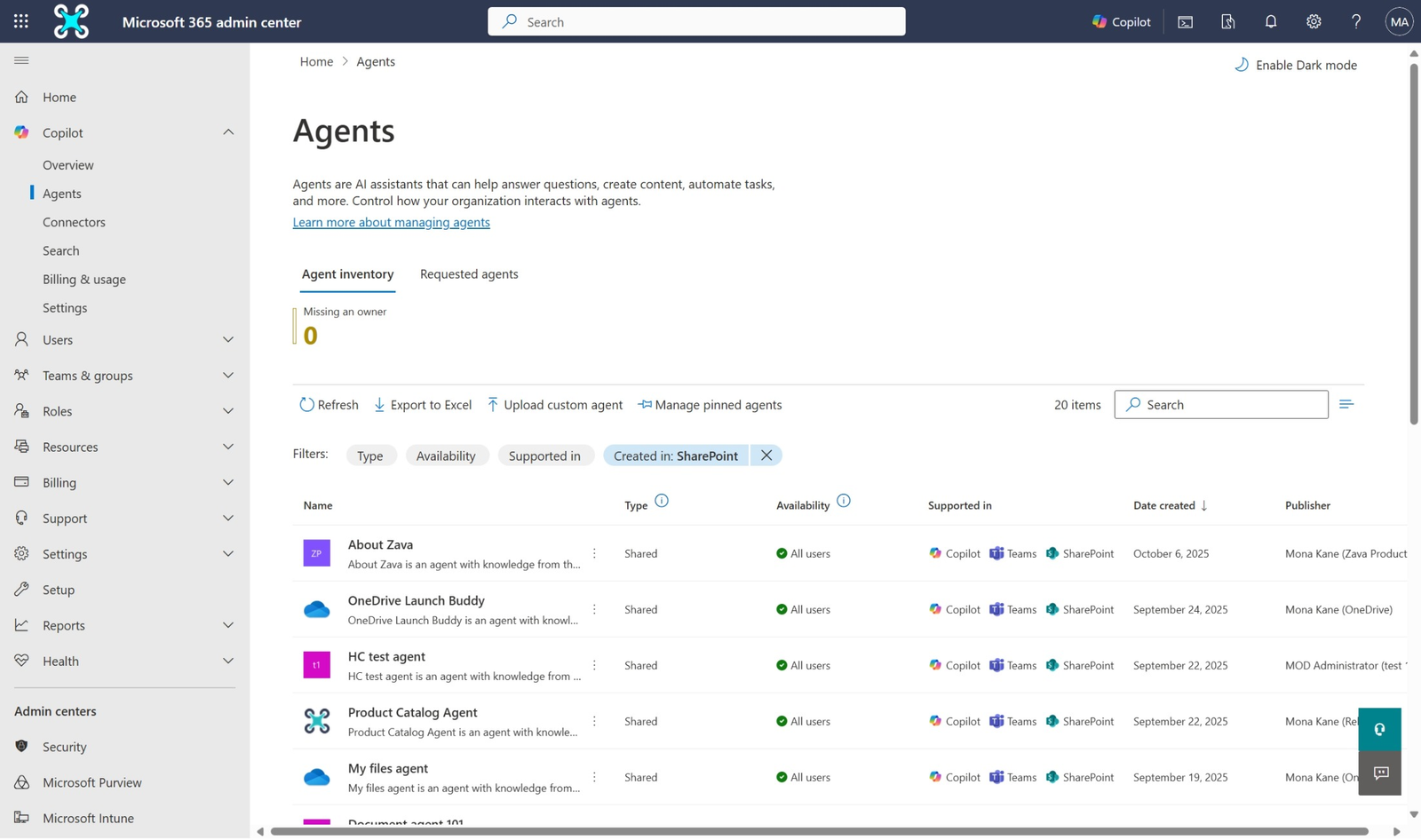
The gap is in the word block. Microsoft’s note is explicit: blocking an agent currently affects only its availability in Copilot Chat, and does not yet apply to OneDrive, SharePoint, or Teams. So an agent living on a SharePoint site, which is where agents in SharePoint live, keeps working on that site after you have blocked it and after the admin centre has told you it is blocked.
If the goal is to stop an agent being used where it was built, blocking is not the control. Removing or re-permissioning the .agent file is, or Restricted Content Discovery on the site.
What this adds up to
There is no single switch that says “no agents on this site, managed by the site owner”. The site-scoped control is Restricted Content Discovery, and that belongs to the SharePoint administrator. Everything else is either a licence decision, a file permission, or a site-wide access policy that happens to affect agents because it affects everything.
Read a second way, that is the design working: agents inherit the permission model instead of inventing one. The practical consequence is that if your permissions are in reasonable shape, agents need very little governance of their own, and if they are not, no agent control will save you. The lever that matters most is the oldest one.
Who needs to do something?
- You blocked an agent and considered it handled. Check whether it still works on its own site. Blocking covers Copilot Chat only.
- You used the per-user SharePoint toggle to scope someone’s access. Confirm they did not also need Copilot in OneDrive or page authoring, because both went with it.
- You applied Restricted Access Control to a Teams-connected site. Its private and shared channel sites are untouched and need their own policy.
- You restricted a site to a control group and stopped there. Sharing outward is still allowed until you set the tenant switch.
- Your permissions are already tidy and reviewed. Then very little here applies to you, which is the actual point.
Related reading
- Hide SharePoint Sites from Copilot: 5 Limits to Know goes into Restricted Content Discovery properly, including the propagation delay and the 20,000-site ceiling that control 3 above glosses over.
- SharePoint Permissions: A Comprehensive Guide for Managing Access Control is the underlying model every agent answer is filtered through, and the one place real remediation happens.
- How does Microsoft 365 Purview help you? covers the DLP and sensitivity label groundwork that control 2 depends on.
Two of these gaps are described in the documentation as current rather than permanent, which suggests blocking will eventually reach SharePoint and labels will eventually apply to agent files. I have no idea on what timeline, and planning around the version that exists today seems safer than planning around the one that is implied.
What I am less sure about is how many agents a typical tenant accumulates before anybody looks. If you have run the inventory, I would like to know what number came back.
Javascript O365 PnP PowerShell Rest Endpoint Send an HTTP Request to SharePoint SharePoint SharePoint Modern SharePoint Online SPO