


Sharing in SharePoint looks like one switch. It behaves like a stack of them. You set a value in one place, something above it or beside it quietly wins, and what users actually get is not what you selected. Nothing logs the override. No warning appears in the admin center. The setting reads back exactly the way you left it while behaving differently.
Below are six of those overrides, every one of them documented by Microsoft, plus the order to check them in when a link refuses to behave.
In this post: Prerequisites · Who can change this · 1. The organization ceiling · 2. Anyone links turning internal · 3. Expiration travels one way · 4. Labels split scope and permission · 5. Entra replacing the SharePoint setting · 6. Groups blocking guests · Where each site type starts · Checking the stack in order · Related reading
Prerequisites
- SharePoint Administrator or Global Administrator. Every setting below sits in the SharePoint admin center or in PowerShell. Site owners cannot reach any of them.
- SharePoint Online Management Shell for the
Get-SPOTenantandGet-SPOSitechecks, and for Teams channel sites, where the admin center cannot set the default link type at all. - Microsoft Purview and sensitivity labels only for the label section. Labels must be enabled for containers to set this on a site, and enabled for files to set it on a document. Label settings are configured through Security and Compliance PowerShell.
- Entra access, or someone who has it. Two of the six overrides are decided outside SharePoint entirely, so you need to be able to read those settings or ask the person who can.
First, who is even allowed to change this
Before the six, one thing that settles a lot of arguments. Site owners cannot change sharing settings. Microsoft is blunt about it in Change the sharing settings for a site: you must be at least a SharePoint Administrator, and “Site owners can’t change these settings.” So when a site owner says they tightened sharing, they changed something else. Usually permissions on a library, or a single link. The sharing setting is still whatever an admin last set.
1. A site can never be more open than the organization
The organization setting is a ceiling, not a default. Per Manage sharing settings, each site “must be at the same or more restrictive setting as the organization,” and OneDrive “can be more restrictive than the SharePoint setting, but not more permissive.” Loosening a single site is impossible without loosening the tenant first, which is the opposite of what most people try.
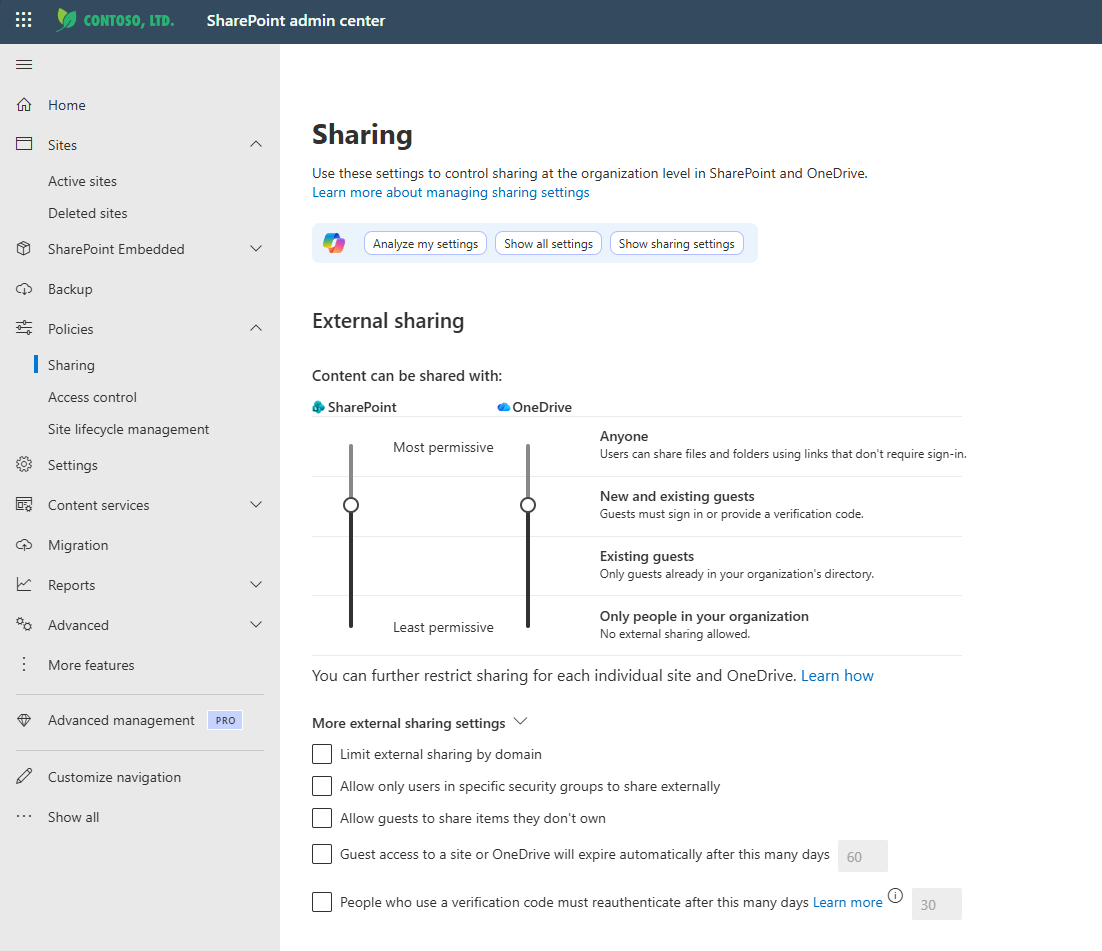
The sharp edge is what happens when you use the tenant switch as a kill switch. Microsoft: “If you turn off external sharing for your organization and later turn it back on, guests regain access.” The site setting returns to its previous value and the old links resume working. Turning off external sharing at the tenant is a pause, not a revocation. If you genuinely want guests gone from a site, turn sharing off on that site first, then at the tenant. Either way, allow about an hour, because guests “typically lose access within one hour of the change.”
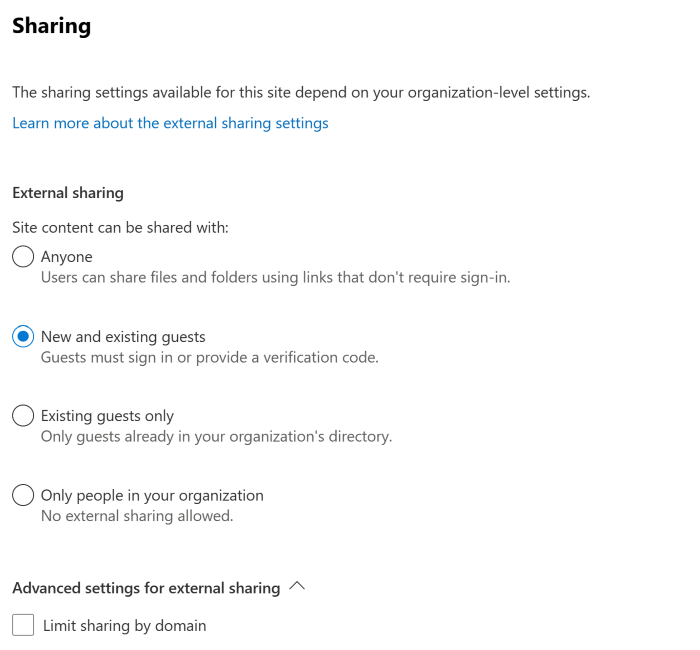
2. “Anyone with the link” silently becomes “Only people in your organization”
You can set the default file and folder link type to Anyone at the tenant level and have it do the reverse on a large share of your sites. The same Microsoft page spells it out: “If you select Anyone with the link, but the site or OneDrive is set to allow sharing only with guests who sign in or provide a verification code, the default link is Only people in your organization. Users need to change the link type to Specific people to share files and folders in the site or OneDrive externally.”
Read that again in terms of who it hits. Every site set to New and existing guests or Existing guests, which is to say the sites you deliberately locked down, ignores your Anyone default and serves an internal link instead. Users then forward that link to an external party, the external party cannot open it, and the ticket lands on you describing a permissions bug. It is not a bug. It is two settings disagreeing, with the stricter one winning and nobody being told.
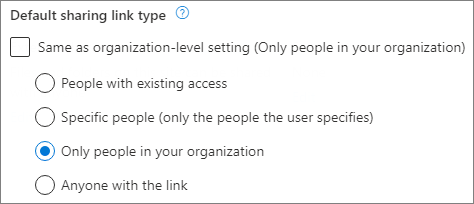
3. Changing link expiration only travels in one direction
This one is a single sentence in the advanced settings for Anyone links, and it is easy to skim past: “If you change the expiration time, existing links keep their current expiration time if the new setting is longer, or update to the new setting if the new setting is shorter.”
Tightening is retroactive. Relaxing is not. Drop the limit from 90 days to 30 and links already in circulation get pulled back to 30, which can kill access in the middle of a live project with no notice to the people holding those links. Raise it from 30 to 90 to fix exactly that complaint and nothing happens to the links anyone already has. Only links created afterward get the longer life. So the change that can hurt applies instantly, and the change meant to help applies to nobody who has already asked for it.
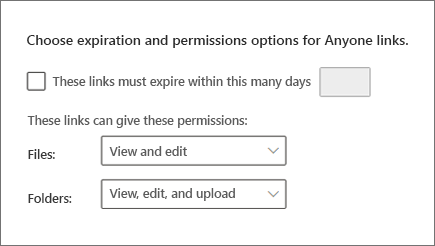
The same panel quietly gates a feature. Request Files needs OneDrive set to Anyone, needs edit permissions enabled for Anyone links, and needs folder link permissions set to “View, edit, and upload” or “View and Upload.” Miss any one of those and the Request Files option is simply absent from the interface. Microsoft states it flatly: “OneDrive settings other than Anyone disable file requests.” Users do not get an error explaining the prerequisite. The button is just not there.
4. A sensitivity label resolves scope and permission from different places
Sensitivity labels can set the default sharing link too, at both site and document level, which adds two more layers above the ones already discussed. The resolution rule looks simple at first. Microsoft says “the more restrictive scope settings will be applied.” Then look carefully at the second worked example in Use sensitivity labels to configure the default sharing link type:
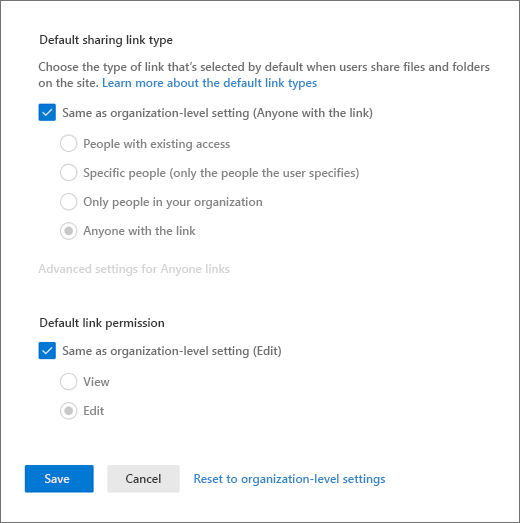
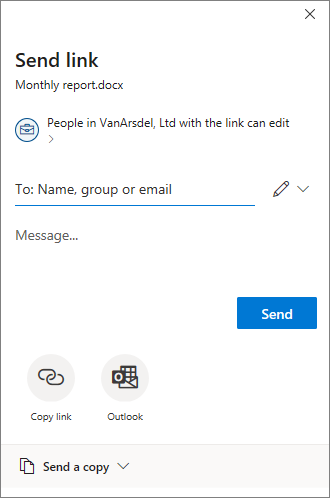
The default sharing link type for the site is scoped to specific people, with edit permissions. A document in that site is labeled with the default sharing link type set to anybody in the organization, with view permissions. When a user shares that document, the default sharing link type selected will be scoped to specific people with edit permissions.
The scope came from the site, because specific people is the stricter of the two. The permission also came from the site, and it is edit, which is the looser of the two permissions on offer. The document label asked for view and did not get it. One setting, two halves, resolved from different places by different logic, and only the scope half follows the more restrictive rule that the documentation states. If you label documents expecting view to stick, test it before you rely on it.
There is also a label setting that overrides the other label settings outright. Setting DefaultShareLinkToExistingAccess to True “overrides the other two advanced settings and their values,” so scope and permission on that label stop mattering entirely.
5. With Entra B2B enabled, an Entra setting replaces the SharePoint one
SharePoint has a setting called “People who use a verification code must reauthenticate after this many days.” It has a condition attached: “If Azure B2B collaboration is enabled, the Microsoft Entra setting is used instead of this setting.” The SharePoint field stays visible and editable, and it stops doing anything. Change it, save it, confirm it saved, and the value governing your tenant lives in Entra.
Two more cross the same boundary. Entra external collaboration settings “determine who can invite guests in your organization for site sharing (always) and file and folder sharing (if Azure B2B collaboration is enabled).” Note the word always on site sharing: that one is never under SharePoint control. And domain restrictions exist in two separate products. SharePoint takes up to 5,000 domains via Set-SPOTenant with SharingDomainRestrictionMode, while allowed or blocked domains in Entra ID “also affect SharePoint and OneDrive site sharing (always) and file and folder sharing (if Azure B2B collaboration is enabled).” A domain allowed in SharePoint and blocked in Entra is blocked.
6. Microsoft 365 Groups can block guests the site has allowed
For any group connected site, which covers every team, the group has its own opinion. Microsoft: “You might have site content shared with a Microsoft 365 group that has guest members, and the group settings prevent guest members from accessing group resources. In this case, even if you turn on external sharing for the site, guests of the group might not be able to access site content.”
So the site says yes, the group says no, and the guest sees nothing. You will not find the cause anywhere in the SharePoint admin center.
Where each site type starts
None of this assumes a clean slate, because new sites do not start in the same place. From the site sharing documentation:
| Site type | Default sharing setting |
|---|---|
| Classic | Only people in your organization |
| OneDrive | Anyone |
| Group connected, including Teams | New and existing guests if the Groups setting “Let group owners add people outside the organization to groups” is On, otherwise Existing guests only |
| Communication | Only people in your organization |
| Modern site with no group (#STS3 TeamSite) | Only people in your organization |
| Root communication site (tenant-name.sharepoint.com) | Anyone |
That last row deserves a second look. Every other communication site defaults to Only people in your organization. The root site, the one at the top of your tenant and usually the most visible thing you own, defaults to Anyone. Microsoft calls it out in a footnote under the table. If you have never audited that specific site, do it today.
Checking the stack in the right order
When a link misbehaves, work down the stack instead of staring at the one setting you expected to control it. Tenant ceiling, then site, then label on the site, then label on the document, then Entra, then the group. The first two are quick to read:
Get-SPOTenant | Select-Object SharingCapability, DefaultSharingLinkType,
    DefaultLinkPermission, RequireAnonymousLinksExpireInDays, SharingDomainRestrictionMode

Get-SPOSite -Identity https://contoso.sharepoint.com/sites/project |
    Select-Object Url, SharingCapability, DefaultSharingLinkType,
        DefaultLinkPermission, DefaultLinkToExistingAccess
One footnote on the admin center itself. The default link type for a Teams private or shared channel site cannot be changed in the interface at all. Microsoft: “To change the default link type for a Teams private or shared channel site, you must use the Set-SPOSite PowerShell cmdlet.” If you manage channel sites and assumed the site level default applied to them, it did not.
Related reading
- SharePoint File Sharing: Best Practices and Approaches covers how to share day to day, which is the layer above everything described here.
- How to Remove SharePoint File Shared Links is the practical follow up to the expiration rule, for links you need gone now instead of eventually.
- SharePoint OTP Retires: 4 Checks Before Links Break goes deeper on the Entra B2B shift behind override number five.
The pattern across all six is the same. SharePoint sharing is not a set of independent toggles, it is a precedence chain running from Entra through the tenant, the site, the label on the site, the label on the document, and the group. Every layer can only tighten. The interface shows you one link in that chain at a time and never shows you which link actually won.
Which of these six has cost you the most time, and did you find it in the documentation or by watching a link fail for somebody who needed it?
Javascript O365 PnP PowerShell Rest Endpoint Send an HTTP Request to SharePoint SharePoint SharePoint Modern SharePoint Online SPO