


Copying documents in SharePoint has more than one right answer, which method actually fits depends on how many files, how often, and whether the process needs to run unattended. This post is a quick recommendation guide; for the full depth on PnP PowerShell bulk copying, job-status checking, and Power Automate, see SharePoint Copy Files: Everything You Need to Know.
In this post: The SharePoint Online interface · What “Copy to” doesn’t carry over · Copy vs. Move, and version history · PowerShell for more than a handful of files · Why a copy actually fails · Which one should you actually use? · Related reading
The SharePoint Online interface
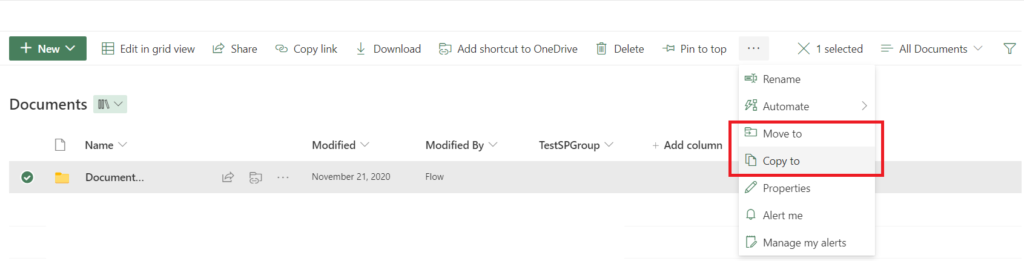
- Navigate to the document library where the document you want to copy is located.
- Select the checkbox next to the document(s) you want to copy.
- Click “Copy to” in the toolbar.
- Choose the destination document library.
- Click “Copy” to start the copy.
Fastest option for a handful of files, no setup required. The tradeoff shows up once “a handful” becomes “a few hundred,” or once the copy needs to run on a schedule rather than by hand.
What “Copy to” doesn’t carry over
Worth knowing before assuming a copy is a perfect duplicate: fields like Created By and Modified By often don’t carry over with a straight UI copy. The copy shows up attributed to whoever performed the copy, not the file’s original author. If preserving that history matters (an audit trail, a records-management requirement), that needs handling explicitly via PowerShell or Power Automate rather than assumed from a UI copy. Permissions don’t automatically carry over either. A copy lands with whatever permissions the destination library already has, not a clone of the source file’s permissions, which is usually the desired behavior but worth confirming rather than assuming.
Copy vs. Move, and version history
Worth knowing before picking “Copy to” out of habit when “Move to” is actually the better fit: a copy only brings over the document’s latest version: the rest of the version history stays behind on the original. A move, by contrast, carries the full version history to the destination, as long as the move stays within the same site collection; moving across site collections, the guarantee is weaker and depends on the tool doing the move. For a file with no meaningful version history this distinction doesn’t matter, but for something with an approval trail or a long edit history worth keeping intact (a contract, a policy document) that difference decides which operation to actually use, not just which one happens to be more convenient to click.
PowerShell for more than a handful of files
For bulk copies or anything that needs to run unattended, PnP PowerShell’s Copy-PnPFile is the real, current tool for this, worth flagging directly since a cmdlet like “Copy-SPOFile” sometimes shows up in older guides implying it’s part of the official SharePoint Online Management Shell. It isn’t; that module has no built-in file-copy cmdlet at all. Copy-PnPFile, from PnP PowerShell, is what actually does the job:
# Connect with PnP PowerShell
Connect-PnPOnline -Url "https://yourdomain.sharepoint.com/sites/yoursite" -Interactive

# Copy a single document
Copy-PnPFile -SourceUrl "/sites/yoursite/SourceLibrary/Document.docx" `
    -TargetUrl "/sites/yoursite/DestinationLibrary" -Overwrite
-TargetUrl takes a folder path, not a full file path with a filename attached. SharePoint won’t let a copy rename the file mid-transfer across libraries. Replace the URLs with the actual site, library, and document names for your environment.
For a large file, or a lot of files at once, the copy runs asynchronously behind the scenes rather than blocking the script until it’s done. Add -NoWait and the cmdlet hands back a job reference immediately instead of waiting. Checking whether that job actually finished is a separate step (Receive-PnPCopyMoveJobStatus), and it’s worth knowing that step exists before assuming a script that returned instantly also means the copy is already complete. The full pattern for that, plus running it against hundreds of files at once, is covered in the deeper guide linked below.
SharePoint Online Management Shell has no built-in file-copy cmdlet. Copy-PnPFile, from PnP PowerShell, is the real tool for scripted or bulk copying.
Why a copy actually fails
Worth knowing the real, common causes before troubleshooting a failed copy from scratch:
- Missing permission at the destination. Copying needs at least Contribute access on the destination library, not just the source. This is the single most common cause, especially copying across sites where the account has rights on one side but not the other.
- A filename that already exists at the destination. By default, a conflicting filename fails the copy outright rather than silently overwriting or renaming.
-Overwritein the PowerShell example above is what changes that behavior. - Required columns or validation rules at the destination the copied file doesn’t satisfy. A library with mandatory metadata columns will block a copy that doesn’t include values for them, rather than landing the item incomplete.
Checking these three before assuming a copy tool itself is broken clears up most “why didn’t this work” cases.
Which one should you actually use?
- A handful of files, once, right now: the UI, no script needed.
- Preserving original author/modified metadata matters: that needs explicit handling in PowerShell or Power Automate, not a plain UI copy.
- Preserving the full version history, not just the latest version. That’s a Move within the same site collection, not a Copy.
- Hundreds of files, or a copy that needs to happen automatically going forward, PnP PowerShell, ideally with the bulk/background-job pattern covered in the full guide linked below.
Related reading
- SharePoint Copy Files: Everything You Need to Know. The full depth: bulk copying with -NoWait, checking job status, Power Automate.
- How to Migrate SharePoint Online Content to Another Tenant. When the copy needs to cross tenant boundaries, not just libraries.
These cover the realistic options for copying documents in SharePoint, which one’s right depends on scale and whether it needs to run unattended, not personal preference.
App Catalog Archives Authentication Automation Backup Compliance Content Type CSS Dataverse Google Governance GULP Javascript Limitations List Metadata MFA Microsoft Migration Node NodeJs O365 OneDrive Permissions PnP Policy PowerApps Power Automate PowerAutomate PowerPlatform PowerShell Rest Endpoint Security Send an HTTP Request to SharePoint SharePoint SharePoint List SharePoint Modern SharePoint Online SPFX SPO Sync Teams Termstore Versioning Workflows