


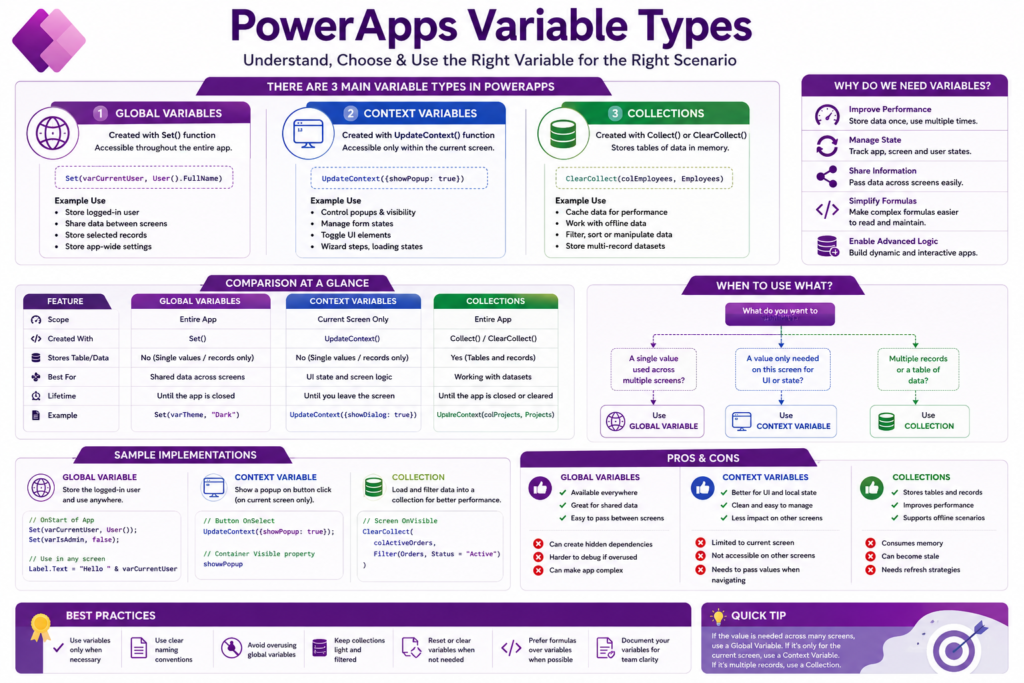
Variables in Power Apps look simple at first (store a value, use it later) but which type you reach for is an architecture decision, not just syntax. Power Apps is formula-driven by design; Microsoft’s own guidance is to lean on formulas (which recalculate automatically) and use variables only when the app genuinely needs to hold state temporarily. Getting the type wrong doesn’t break the app immediately. It just makes it progressively harder to debug and maintain as it grows.
In this post: The three variable types · Real differences · Best practices · Common mistakes · Alternatives to variables · When would you actually use this? · Related reading
The three variable types
| Type | Scope | Created with |
|---|---|---|
| Global variable | Entire app | Set() |
| Context variable | Current screen only | UpdateContext() |
| Collection | Entire app | Collect() / ClearCollect() |
Global variables (Set(varCurrentUser, User().FullName)) are readable from any screen or control once set. They’re the right call when multiple screens genuinely need the same value, the logged-in user, a selected record carried across a navigation, shared theme settings, roles and permissions reused throughout the app. The cost is real too: overused, they create hidden cross-screen dependencies that make an app harder to reason about and debug.
Context variables (UpdateContext({showDialog: true})) exist only on the screen where they’re created. They’re the natural fit for anything purely local to that screen’s UI. Popup visibility, a loading flag, a wizard step, a toggle state. The tradeoff is exactly their strength: they can’t be read from another screen, so if the value needs to travel with a navigation, it has to be passed explicitly or promoted to a global.
Collections (ClearCollect(colApprovedRequests, Filter(Requests, Status = "Approved"))) are the only one of the three that stores full tables, not just single values. App-wide in scope, like globals. They’re built for caching a dataset locally: SharePoint or Dataverse data pulled once and filtered/manipulated in memory, offline scenarios, or staging data before a bulk submission. The real cost is memory and staleness. A collection is a snapshot, not a live query, so it needs a deliberate refresh strategy or it silently drifts from the actual data source.
Real differences
| Feature | Global | Context | Collection |
|---|---|---|---|
| Scope | Entire app | Single screen | Entire app |
| Stores full tables | No | No | Yes |
| Best for | Shared values | UI state | Data caching |
| Typical performance cost | Medium | Low | Higher (memory) |
Two quick real-app mappings, to make the choice concrete: in an HR employee app, the logged-in user is a global, popup visibility for an employee detail card is a context variable, and the cached employee list is a collection. In an approval workflow app, the approver’s role is a global, the current step in a multi-step approval is a context variable, and the pending-approvals list is a collection. The pattern repeats. Identity and shared state go global, screen-local UI state stays context, datasets become collections.
Best practices
- Use a variable only when a formula won’t do. Power Apps formulas are reactive by default. A lot of what gets stored in a variable out of habit doesn’t need to be.
- Prefix by type so scope is obvious at a glance:
varfor globals,ctxfor context variables,colfor collections.varCurrentUsertells you more thantest1ever will. - Don’t default to global. If a value only matters on one screen, a context variable is the cleaner choice. Reaching for
Set()out of habit creates dependencies the app doesn’t actually need. - Keep collections lightweight. Filter at the data source before loading into a collection rather than pulling everything and filtering client-side. 20,000 unfiltered records in memory is a real performance problem, not a hypothetical one.
- Reset variables deliberately (
Set(varSelectedEmployee, Blank()),Clear(colEmployees)) rather than assuming they’ll be overwritten cleanly next time. Stale values from a prior session are a common source of confusing bugs.
Common mistakes
- Treating a collection like a database. It’s temporary in-memory storage that disappears when the app closes, not a substitute for actually persisting data to Dataverse or SharePoint.
- Using a global for pure UI state (
Set(varPopupVisible, true)for something only one screen ever touches). It works, but it’s an unnecessary app-wide dependency for something a context variable handles more cleanly. - Forgetting scope limitations: trying to read a context variable from a different screen than the one that set it is one of the most common beginner mistakes, and it fails silently rather than erroring loudly.
Alternatives to variables
Sometimes the right answer is not using a variable at all:
| Alternative | Best for |
|---|---|
Named formulas (App.Formulas) | Global state that should recalculate automatically, replacing many Set() globals |
With() | Temporary inline calculations that don’t need to persist |
| Components | Reusable state handling across multiple screens/apps |
| Dataverse | Data that needs to persist beyond the session |
| SharePoint Lists | External data persistence outside Dataverse |
The first row is worth a closer look, since it’s Microsoft’s own current recommendation for exactly the “global variable” scenario this post opens with. Defined once, in the app’s Formulas property:
CurrentUserName = User().FullName;
IsManager = LookUp(Employees, Email = User().Email).IsManager;
Used anywhere in the app as CurrentUserName or IsManager, no Set() call and no App.OnStart needed. The real advantage over a global variable: a named formula has no timing dependency on App.OnStart having already run, and it recalculates automatically whenever whatever it depends on changes. A global variable set once at startup can silently go stale if the underlying data changes later, a named formula can’t. The tradeoff is that it’s read-only by definition (there’s no way to imperatively overwrite a named formula’s value the way Set() overwrites a variable), so it fits values that are genuinely derived or computed, not state a user needs to directly change during a session, for that, a real global variable is still the right tool, and Microsoft has been explicit that Set() isn’t going away.
The most professional Power Apps solutions aren’t the ones with the most variables. They’re the ones where every variable is intentional, correctly scoped, and named so its purpose is obvious.
When would you actually use this?
- You’re deciding where to store a selected record, a user’s role, or a shared setting that multiple screens need, global variable.
- You need to toggle a popup, track a loading state, or manage a wizard step that’s purely local to one screen, context variable.
- You’re caching a filtered dataset for performance, offline use, or staging edits before a bulk submit. Collection, kept as lean as the actual use case requires.
Related reading
- Common PowerApps Utility Functions. Set(), UpdateContext(), and Collect() covered alongside the rest of the formula language.
- M365 Dataverse or SharePoint List as Data Source. The persistent-storage alternative referenced above, compared in full.
References
That’s the full breakdown. Comment below if your use case doesn’t fit neatly into one of these three.
App Catalog Archives Authentication Automation Backup Compliance Content Type CSS Google GULP Javascript Limitations List Metadata MFA Microsoft Migration Node NodeJs O365 OneDrive Permissions PnP Policy PowerApps Power Automate PowerAutomate PowerFx PowerPlatform PowerShell Rest Endpoint Security Send an HTTP Request to SharePoint SharePoint SharePoint List SharePoint Modern SharePoint Online SPFX SPO Sync Tags Teams Termstore Versioning Workflows
Pingback: M365 Dataverse or SharePoint List as Data Source : Quick Comparison - Tips by Bits
Pingback: Business Rules vs. JavaScript in Model-Driven Apps: When to Actually Use Each - Tips by Bits