


A Content Type Hub is the central place to manage and share content types across your entire SharePoint environment. Create a custom content type once, publish it from the hub, and it becomes available to use anywhere in the tenant, instead of recreating the same content type in every site that needs it.
In this post: What the Content Type Hub actually does · Finding your Content Type Hub site · Creating a content type in the hub · Actually publishing it · The on-premises timer jobs behind syndication · The last step: attaching it to a library · Related reading
What the Content Type Hub actually does
You can manage and share content types in either SharePoint Online or SharePoint On-Premises through the Content Type Hub, which serves as a central location for them. A Content Type Hub is what you need when a custom content type has to be usable across numerous sites in your SharePoint environment, rather than defined locally, site by site, every time it’s needed.
Finding your Content Type Hub site
You can establish a content type hub using SharePoint On-Premises, or create your own site collection to serve as the content type hub. In SharePoint Online, a site collection for exactly this purpose is already provisioned for you the moment your tenant is created, at:
https://MySharePointTenant.sharepoint.com/sites/contenttypehubCreating a content type in the hub
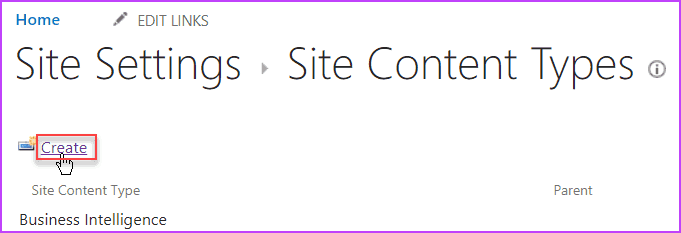
To create a new content type in the Content Type Hub site collection, go to Site Settings > Site Content Types > Create.
Clicking “Create” opens a “New Site Content Type” page. Enter a Name and Description for the new content type, choose a Parent Content Type (Item is the usual starting point), and either an existing Group or a new one. Custom Content Types is a reasonable default for anything that doesn’t already have an obvious home. Click OK.
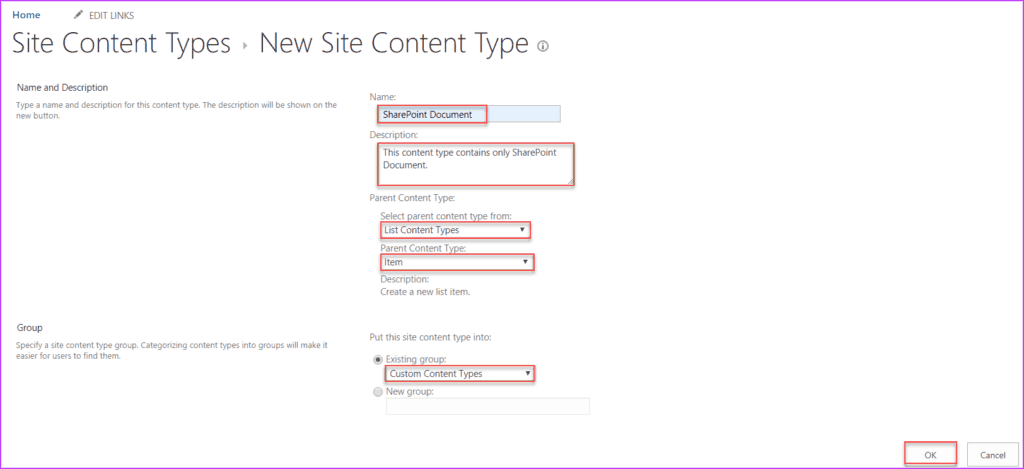
The image below shows a “SharePoint Document” content type built on the Item content type, sitting inside the Custom Content Types group in the Content Type Hub site collection.
Actually publishing it
Creating the content type inside the hub isn’t enough on its own. It still needs to be shared before it’s usable anywhere else in the tenant. On the content type’s own page, click “Manage publishing for this content type“, then Publish.
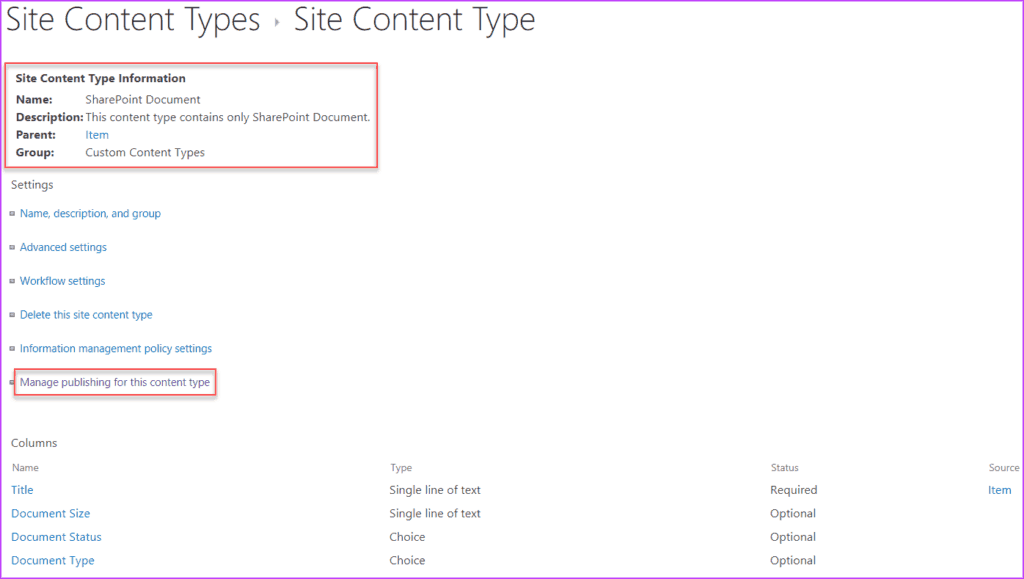
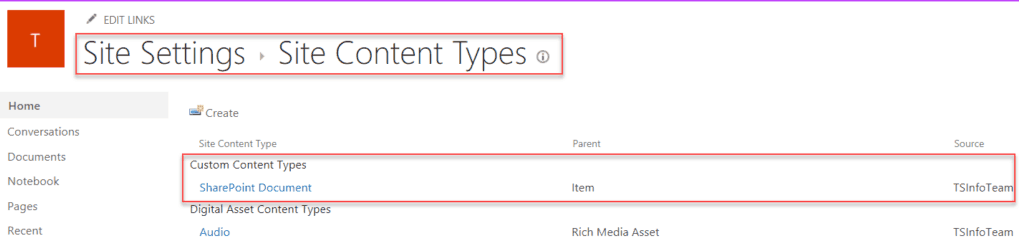
Publishing doesn’t propagate instantly. It’s picked up by a scheduled job (covered in more detail below), so the content type shows up in subscribing sites’ Site Content Types list a short while later, not the moment Publish is clicked. Once it’s rolled out, it appears in the target site’s list of Site Content Types, as in the image below.
Changing the content type later and republishing follows the same “Manage publishing” path, click Republish rather than Publish. The same propagation delay applies; it’s not instant just because it’s an update rather than a first publish.
The on-premises timer jobs behind syndication
SharePoint Online manages the propagation delay above for you, invisibly. On SharePoint On-Premises, the same syndication is driven by two named timer jobs you can actually see and manage yourself, in Central Administration under Monitoring > Timer Jobs:
- Content Type Hub: runs on the hub site collection itself, tracking published content types and preparing them for syndication.
- Content Type Subscriber: runs on every web application that consumes from the hub, pulling down published content type packages and applying them to the local content type gallery.
By default, this syndication job runs every 15 minutes, so a published or republished content type on-premises can take up to that long to actually show up on a subscribing site, longer if the job’s schedule has been changed. If a content type isn’t appearing where expected, checking these two jobs’ status under Review job definitions / Check job status in Central Administration is the actual troubleshooting step, rather than assuming publishing itself failed.
The last step: attaching it to a library
Showing up in a site’s Site Content Types list, per the screenshot above, means the content type is available on that site. It doesn’t mean anyone’s using it yet. It still has to be added to the specific list or library where it should actually apply:
- Open the target library, click the gear icon > Library settings (or List settings for a list).
- Under Content Types, confirm “Allow management of content types” is enabled. If the section isn’t visible at all, this is usually why.
- Click Add from existing site content types, find the published content type (it’s grouped under whatever Group name it was given back when it was created in the hub), and add it.
Only after this step does “New” on that library actually offer the hub-published content type as an option. This is also the step worth repeating on every library across every site that’s supposed to use it. Publishing from the hub makes the content type available tenant-wide, but “available” and “actually attached to this specific library” are two different states, and the second one is still a manual, per-library action.
If a large number of libraries need the same content type attached, doing this by hand across dozens of sites is exactly the kind of repetitive step worth scripting instead. PnP PowerShell’s content type cmdlets can add a content type to a list programmatically, looped across every site in a hub or tenant, rather than clicking through the settings page one library at a time.
Publishing a content type doesn’t propagate instantly, on-premises, it’s the Content Type Hub and Content Type Subscriber timer jobs, running every 15 minutes by default, that actually push it out.
Related reading
- SharePoint Content Type bits of tips!. Tenant-wide vs. local content types, and how inheritance lets child content types build on a shared hub-published parent.
- SharePoint Content Types: The Good, The Bad, and The Ugly. Content Type Hub vs. Hub Sites (a common mix-up), plus scripting hub publishing with PnP PowerShell.
Now that’s another tip from TipsByBits! This is just a slice of a wide topic, but it’s a genuinely useful starting point for setting up and maintaining a Content Type Hub.
App Catalog Archives Automation Backup Compliance Content Type CSS Dataverse Google Governance Javascript Limitations Metadata MFA Microsoft Migration ModernScriptEditor Node NodeJs O365 OneDrive Permissions PnP Policy PowerApps Power Automate PowerAutomate PowerPlatform PowerShell Rest Endpoint ScriptEditor Security Send an HTTP Request to SharePoint SharePoint SharePoint List SharePoint Modern SharePoint Online SPFX SPO Sync Tags Teams Termstore Versioning Workflows
Fantastic job explaining everything.
Exceptional informational content.