


Out-of-the-box SharePoint list and library views come with a command bar full of buttons (New, Upload, Share, Automate, Power Apps) most of which a given audience doesn’t need and shouldn’t necessarily have. JSON command bar formatting lets you hide, rename, or restyle those buttons without any code.
In this post: Applying the JSON format · A working example · Every key you can target · This hides the button, not the permission · This view only, unless you make it the default · When JSON formatting isn’t enough · When would you actually use this? · Related reading
Applying the JSON format
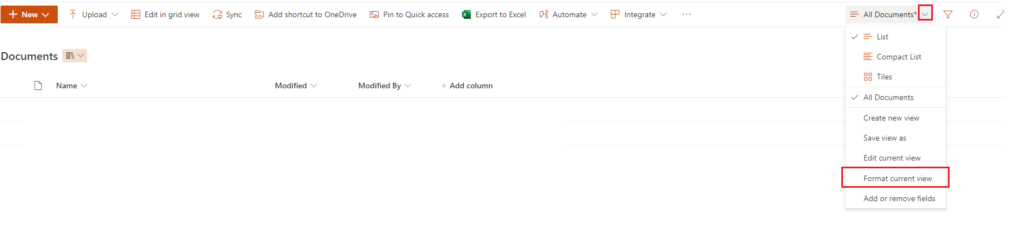
On the list or library, open the view title dropdown and click Format current view:
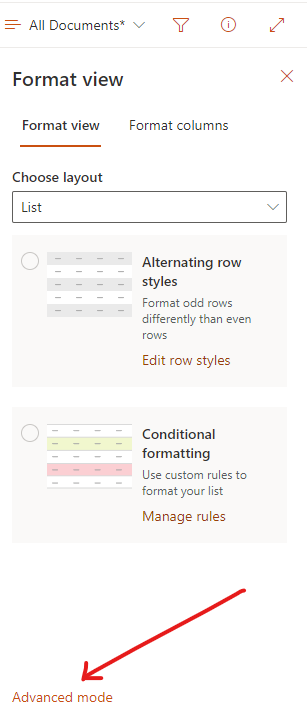
Click Advanced mode to edit the JSON directly, rather than working through the limited visual options:
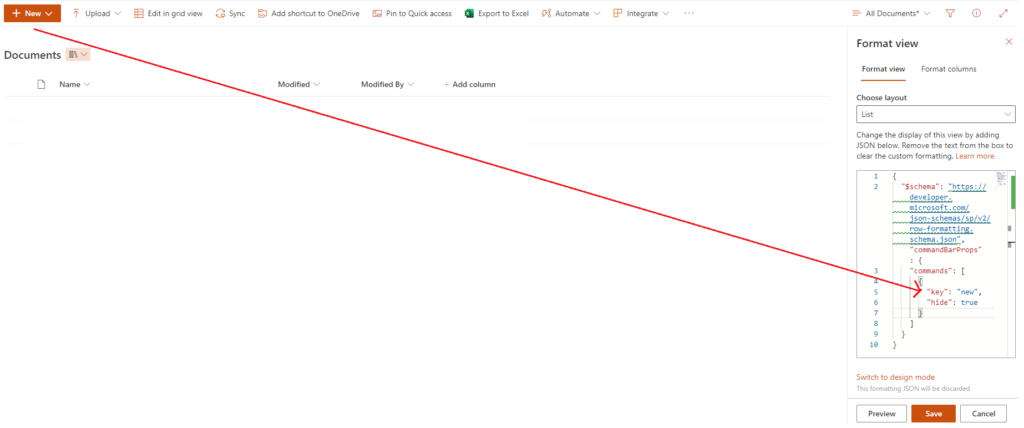
From there, paste in the command bar JSON (see the working example below), hit Preview to confirm it does what you expect before committing, then Save:
A working example
This does three things at once: hides the New command entirely, renames Edit in grid view and gives it primary-button styling, and strips the icon from Share while updating its tooltip:
{
  "commandBarProps" : {
    "commands": [
      {
        "key": "new",
        "hide": true
      },
      {
        "key": "editInGridView",
        "text": "Quick edit",
        "iconName": "EditTable",
        "primary": true
      },
      {
        "key": "share",
        "iconName": "",
        "title": "Share this List"
      }
    ]
  }
}
The primary property is worth understanding since it’s easy to misuse: it only actually applies primary-button styling if the command is also in the 0th position of the command bar, setting primary: true on a button further down the bar has no visible effect on its own.
Every key you can target
'new'
'newFolder'
'newWordDocument'
'newExcelWorkbook'
'newPowerPointPresentation'
'newOneNoteNotebook'
'newFormsForExcel'
'newVisioDrawing'
'upload'
'uploadFile'
'uploadFolder'
'open'
'share'
'copyLink'
'download'
'rename'
'copyTo'
'moveTo'
'delete'
'edit'
'comment'
'editNewMenu'
'powerBI'
'powerBIVisualizeList'
'automate'
'automateCreateRule'
'automateManageRules'
'powerAutomate'
'powerAutomateCreateFlow'
'powerAutomateSeeFlows'
'powerAutomateConfigureFlows'
'aiBuilderCreate'
'aiBuilderGoto'
'aiBuilder'
'alertMe'
'newLink'
'integrate'
'manageAlert'
'powerApps'
'powerAppsCreateApp'
'powerAppsSeeAllApps'
'powerAppsCustomizeForms'
'viewDocumentUnderstandingModels'
'versionHistory'
'openInImmersiveReader'
'classifyAndExtract'
'checkOut'
'checkIn'
'undoCheckOut'
'properties'
'pinItem'
'exportExcel'
'exportCSV'
'export'
'editInGridView'
'exitGridView'
'sync'
'uploadTemplate'
'addTemplate'
'openInOfficeOnline'
'openInOfficeClient'
'addShortcut'
'pinToQuickAccess'
'unpinFromQuickAccess'
The primary-button styling only applies if the command is also in the 0th position of the command bar. Setting it on a button further down does nothing visible on its own.
This hides the button, not the permission
Worth being explicit about this before treating it as an access control: command bar JSON formatting is display-layer only, exactly like the row/column formatting it shares a schema with. Hiding new and delete stops someone from clicking those buttons in this specific view. It does nothing to the underlying Add Items / Delete Items permission on the list. Anyone who still has Contribute-level access can add or delete items through any path that doesn’t route through this view’s command bar: the Microsoft Lists mobile app, Quick Edit’s row-add behavior, a Power Automate flow, a direct REST/Graph API call, or simply opening a different view of the same list that doesn’t have the same JSON applied.
If the goal is genuinely stopping certain users from adding or deleting items (not just decluttering the UI for people who wouldn’t do it anyway) the actual control is a permission level (break inheritance, drop the group to Read or a custom “Contribute without Delete” permission level) or Conditional Access/DLP for something more org-wide. Use command bar formatting for what it’s actually good at: reducing clutter and guiding the right action for people who already have the permission but don’t need the extra buttons in front of them.
This view only, unless you make it the default
Worth knowing before this ships and someone reports “it’s not working”: commandBarProps JSON is applied at the view level, not the list level. It customizes whichever specific view was open when Format current view was clicked, not every view on the list. Apply it to a custom “Team View” and a user browsing the default “All Items” view still sees every original button, untouched, because that’s a genuinely different view with its own formatting (or lack of it).
Two ways this actually gets fixed in practice: apply the same JSON to each view that needs it individually (repetitive, but explicit about exactly where it applies), or set the formatted view as the list’s default view (List settings > Views > [view name] > Make this the default view) so most users land on it without deliberately switching views. Neither approach makes the formatting follow a list around automatically. There’s no “apply to all views” toggle, so a list with several views in active use needs the JSON reapplied to each one that matters.
When JSON formatting isn’t enough
JSON command bar formatting only covers what’s in the key list above. It can’t add entirely new logic, react to a user’s specific permission level dynamically, or touch anything outside the command bar itself. For that, the real option is an SPFx Application Customizer extension, which gives full script-level control at the cost of an actual development and deployment process instead of pasting JSON into a view.
When would you actually use this?
- A list is used by people who shouldn’t be creating new items or deleting existing ones from that view. Hide
newanddeleterather than relying on everyone remembering not to click them. - The command bar is cluttered with Power Automate/Power Apps/AI Builder buttons nobody on this list actually uses. Stripping them down makes the real actions easier to find.
- You need to rebrand a button’s label or icon to match how your org actually refers to an action, without touching any code.
Reference: Microsoft Learn: View command bar formatting.
Related reading
- SharePoint List View Formatting Overview. The same JSON formatting engine applied to rows, columns, and conditional styling instead of the command bar.
- Understanding SharePoint List Types. Useful background on what’s actually being formatted underneath a given view.
That’s the full picture. Comment below if a specific key doesn’t behave the way you expect.
App Catalog Archives Automation Backup Compliance Content Type CSS Dataverse Google Governance Javascript Limitations Metadata MFA Microsoft Migration ModernScriptEditor Node NodeJs O365 OneDrive Permissions PnP Policy PowerApps Power Automate PowerAutomate PowerPlatform PowerShell Rest Endpoint ScriptEditor Security Send an HTTP Request to SharePoint SharePoint SharePoint List SharePoint Modern SharePoint Online SPFX SPO Sync Tags Teams Termstore Versioning Workflows