


Worth leading with directly, since it changes which flow pattern is actually worth building: Power Automate’s SharePoint connector has a dedicated Copy file action that copies server-side, without the file’s content ever passing through the flow. A meaningfully better default than the “Get file content” + “Create file” two-step pattern for most straightforward copies. This post covers both, and when the older two-step pattern is still the right choice. For a PowerShell-scripted bulk-copy alternative to either, see Copy Files.
In this post: The native Copy file action · The real limitation: metadata and version history · A real mistake worth avoiding: the trigger loop · The Get file content / Create file pattern · The real size limit on this pattern · Which one should you actually use? · Related reading
The native Copy file action
- Create an Automated Cloud Flow, triggered by “When a file is created or modified (properties only)” on the source library.
- Add a single action: search for and select “Copy file” from the SharePoint connector.
- Configure it: Current site address (source), File to copy (the dynamic file identifier from the trigger), Destination site address, Destination folder, and an If another file already exists conflict-behavior setting.
- Save and test by adding a file to the source library.
That’s the entire flow. One trigger, one action. SharePoint performs the copy on its own servers; the file’s bytes never pass through Power Automate’s execution context at all, which is exactly why this handles large files the two-step pattern below genuinely struggles with.
The native Copy file action copies server-side. The file’s bytes never pass through Power Automate at all, which is why it handles large files the manual Get-content/Create-file pattern genuinely can’t.
The real limitation: metadata and version history
Worth knowing before assuming Copy file is a strictly better replacement in every case: it doesn’t bring version history, author, or custom column metadata along with it. The copy lands as a fresh file with the destination library’s defaults, not a full clone of everything the source file carried. Very large copies also run asynchronously behind the scenes, which can mean the action takes longer to report completion than its size alone would suggest, even though the actual data transfer isn’t limited by the flow’s own message size the way the pattern below is.
A real mistake worth avoiding: the trigger loop
Worth checking before turning either flow on: the trigger fires on “created or modified,” and a copy operation is itself a creation event. If the source and destination libraries are ever the same, or if a second flow watches the destination and copies back toward the source, the flow can trigger itself repeatedly. This isn’t a hypothetical edge case; it’s a common, real mistake when a flow gets cloned and repointed without checking that source and destination genuinely stay distinct. Scoping the trigger to a specific folder rather than an entire library, where the connector supports it, is a cheap extra safeguard on top of just double-checking the site/library values are actually different.
The Get file content / Create file pattern
Still the right choice when the flow needs to actually touch the content in between (renaming based on content, transforming the file, or triggering conditional logic based on what’s inside it) rather than a pure, unmodified copy:
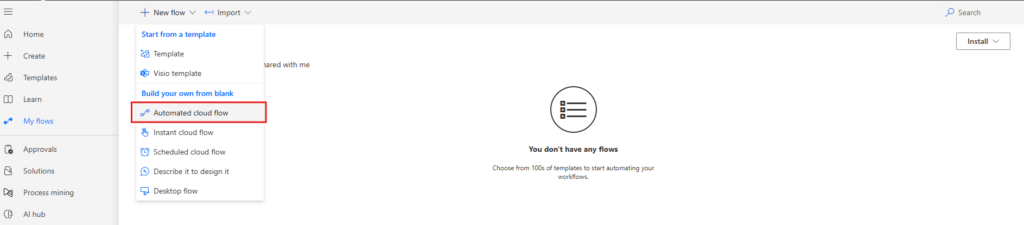
- Same trigger as above: “When a file is created or modified (properties only)” on the source library.
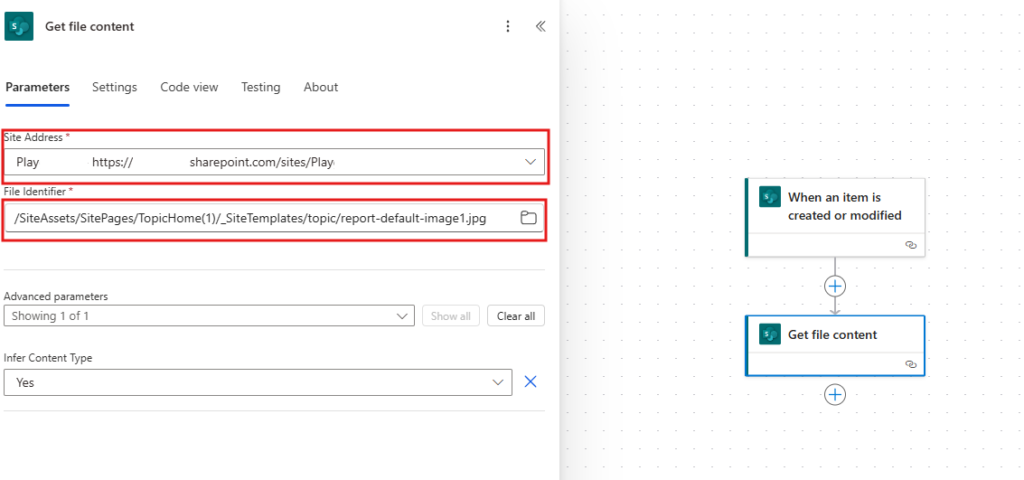
- Add “Get file content”, configured with the source site address and the file identifier from the trigger’s dynamic content.
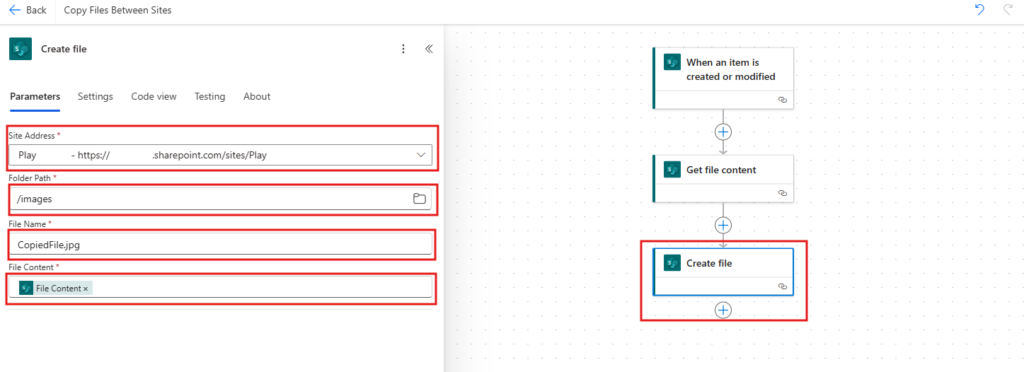
- Add “Create file”, configured with the destination site address, destination folder, the file name from the trigger’s dynamic content, and the file content from the “Get file content” step’s output.
The real size limit on this pattern
Worth knowing as a genuine, verified constraint rather than a vague “large files might have issues” caveat: SharePoint itself supports individual files up to 250GB, but Power Automate’s own message size limit caps out around 100MB, and because “Get file content” passes the file through as Base64-encoded text, the encoding overhead means the practical ceiling before a flow starts failing is closer to 70-80MB, noticeably lower than the documented 100MB figure. A document library that occasionally holds larger files (videos, CAD files, large PDFs) will see this specific pattern fail unpredictably on exactly those files, while working fine on everything smaller. The native Copy file action above doesn’t have this constraint at all, since the content never gets encoded and passed through the flow’s own message pipeline in the first place.
Which one should you actually use?
- A straightforward, unmodified file copy: the native Copy file action, by default. Simpler flow, no size ceiling to worry about.
- Files that might exceed roughly 70-80MB: Copy file specifically, since Get file content will eventually fail on exactly the files where it matters most.
- The flow needs to inspect, transform, or conditionally act on the file’s actual content. The Get file content / Create file pattern, since Copy file never exposes the content to the flow at all.
- Preserving version history, author, or custom metadata on the copy genuinely matters. Neither built-in action does this fully; a PowerShell-scripted approach (linked below) is worth evaluating instead.
Related reading
- Copy Files. The PnP PowerShell bulk-copy alternative, including job-status checking for large batches.
- SharePoint, How to Copy Document Recommendations. A shorter decision framework across all the copy methods, not just Power Automate.
The two-step pattern isn’t wrong, and it’s still the right tool when the flow genuinely needs to touch the file’s content, but for the common case of “just copy this file to another site,” the native Copy file action is simpler to build, has no meaningful size ceiling, and is worth defaulting to first. Worth revisiting an existing flow built on the older pattern too, if it’s ever thrown an unexplained failure on a specific file. Checking whether that file happened to be one of the larger ones in the library is a fast way to confirm the Base64 ceiling was the actual cause.
App Catalog Archives Automation Backup Compliance Content Type CSS Dataverse Google Governance Javascript Limitations Metadata MFA Microsoft Migration ModernScriptEditor Node NodeJs O365 OneDrive Permissions PnP Policy PowerApps Power Automate PowerAutomate PowerPlatform PowerShell Rest Endpoint ScriptEditor Security Send an HTTP Request to SharePoint SharePoint SharePoint List SharePoint Modern SharePoint Online SPFX SPO Sync Tags Teams Termstore Versioning Workflows