


This post covers the other half of getting a content type from a Content Type Hub onto a site: publishing it in the hub is only step one. A site collection also has to actually be subscribed to receive it. Everything below is the subscribing side.
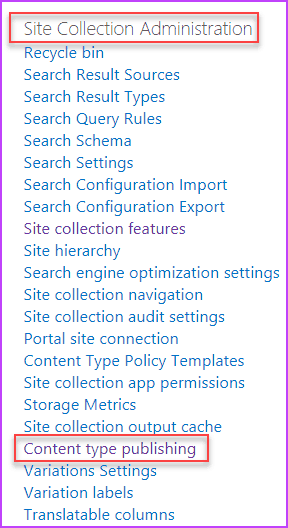
Worth a heads-up before diving in: configuring Content Type Publishing on the subscriber side needs Site Collection Administrator rights on that site, not just ownership or Full Control of a subsite. The setting lives in Site Collection Administration specifically, and a permission level short of that won’t even show the option.
In this post: Finding the hub · Publish or Republish the content type · Subscribing a site collection to the hub · How long does it actually take? · Pulling a content type in immediately with PnP PowerShell · What happens if the hub connection goes away · Related reading
Finding the hub
SharePoint Online already provisions a Content Type Hub site collection the moment your tenant is created, at:
https://YourSharePointTenantSite.sharepoint.com/sites/contenttypehubPublish or Republish the content type
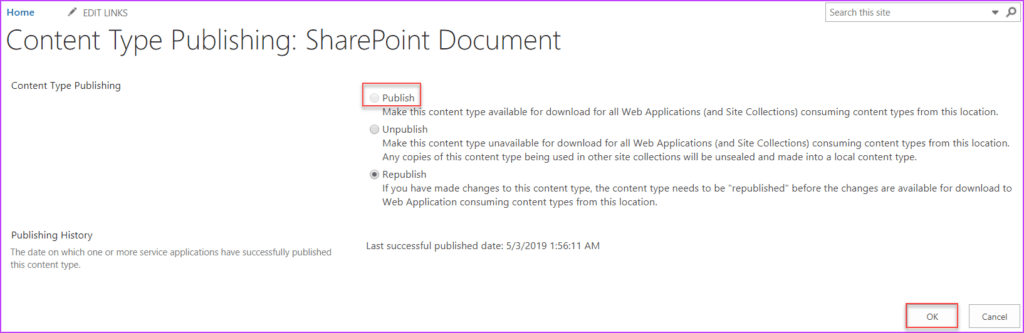
On the hub site, go to Site Settings, then Content Types. Click a content type, and you’ll see options to Publish, Unpublish, or Republish it. A brand-new content type only offers “Publish”. Once that’s been clicked, the option changes to “Republish” for any future edits, since it’s already live. Simply select “OK” to confirm either action.
Subscribing a site collection to the hub
Publishing from the hub doesn’t automatically push a content type onto every site collection. The destination side has its own setting. On the site collection where the content type should show up, go to Site Settings > Site Collection Administration > Content Type Publishing, and select the hub to subscribe to from the list.
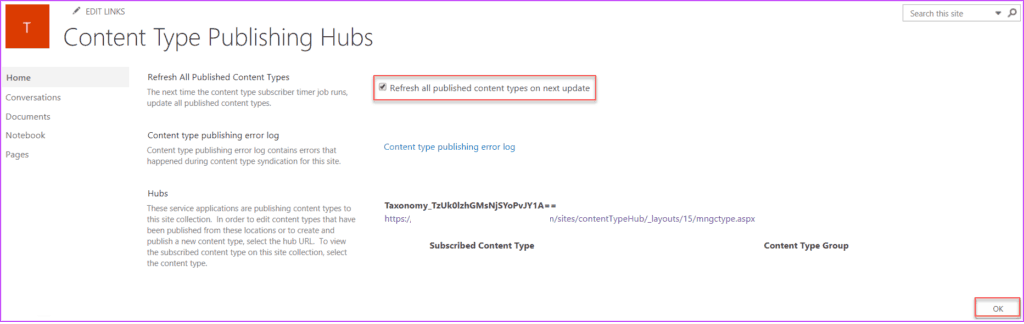
Check the box next to “Refresh all published content types on next update” in the Content Type Publishing Hubs section, then select OK. This checkbox doesn’t stay checked permanently. It’s a one-time flag that forces the next sync to pick up every already-published content type, not just newly published ones, rather than waiting for the site’s normal incremental sync.
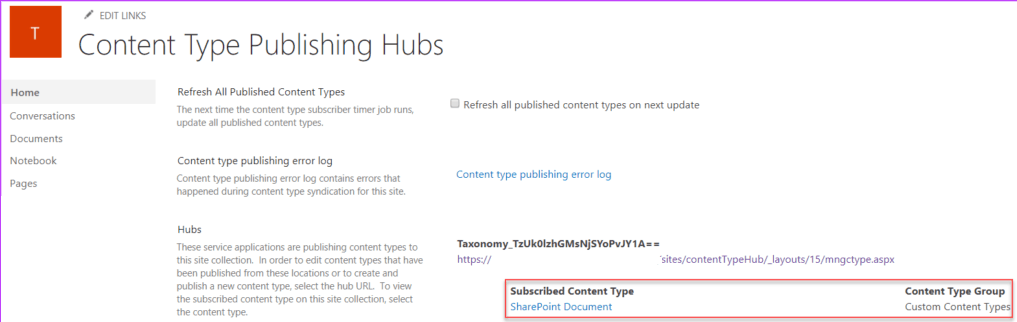
After the sync runs, the site collection shows up as subscribed to the content type, as below:
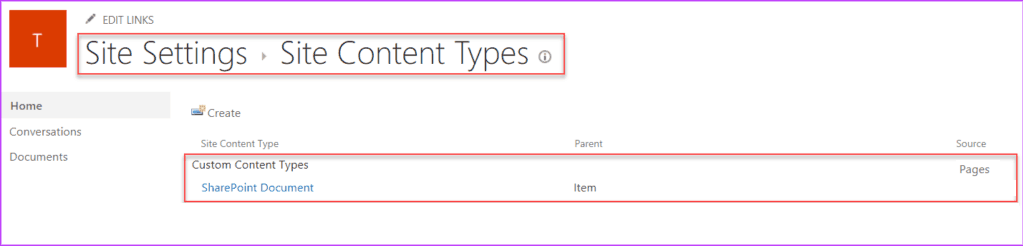
And the content type appears in the subsite’s own list of Site Content Types, ready to be added to a specific library:
How long does it actually take?
Worth setting real expectations here rather than just “after some time”: in SharePoint Online, the sync that picks up publishing and subscription changes isn’t on a fixed, published schedule the way it is on-premises. It’s commonly reported taking anywhere from under an hour up to around 4 hours in practice, since Microsoft manages the underlying timer job infrastructure and doesn’t expose a guaranteed interval the way Central Administration does on-premises. Checking back 15 or 30 minutes later and assuming something’s broken because the content type hasn’t appeared yet is a common false alarm. Give it real time, and only start troubleshooting the subscription settings themselves if it’s still missing well beyond that window.
Pulling a content type in immediately with PnP PowerShell
If the multi-hour wait above isn’t acceptable (testing a new content type, or a deadline that can’t wait for the next sync) PnP PowerShell can pull a published content type directly into a site without going through the subscription/sync cycle at all:
Connect-PnPOnline -Url "https://yourtenant.sharepoint.com/sites/YourSite" -Interactive

# Confirms which hub this site is actually configured to pull from
Get-PnPContentTypePublishingHubUrl

# Pulls a specific content type from the hub into the current site immediately
Add-PnPContentTypesFromContentTypeHub -ContentTypes "SharePoint Document"
This bypasses the wait entirely for the one site it’s run against, but it’s a one-time pull, not a subscription. Future updates to that content type still rely on the normal sync (or being re-run manually) unless the site is also genuinely subscribed via the Content Type Publishing settings above. Useful for getting unblocked on one site immediately; not a substitute for setting up the subscription properly if the content type needs to stay current going forward.
Confirm it actually landed with Get-PnPContentType against the target site rather than assuming the cmdlet’s success message means it’s immediately visible in the browser. The underlying object is created right away, but the site’s content type gallery cache in the UI can lag a few minutes behind, the same way many SharePoint admin changes do.
What happens if the hub connection goes away
Worth knowing before assuming unsubscribing or unpublishing is a clean undo: in no case does SharePoint automatically remove a content type from a site collection that already received it. If a content type is unpublished from the hub, or a site collection is unsubscribed, whatever copies already synced stay exactly where they are. They just stop receiving further updates and effectively become orphaned, disconnected local content types rather than being deleted or rolled back.
That means cleaning up a content type that’s no longer wanted is a separate, manual step on every site that already has it, removing the subscription (or unpublishing from the hub) only stops future propagation, it doesn’t retroactively pull back what’s already been distributed. Worth factoring into any decision to retire a content type: the actual cleanup work scales with how many sites subscribed to it, not with how quickly it’s unpublished from the hub.
Publishing from the hub doesn’t automatically push a content type onto every site collection. The destination side has its own Content Type Publishing subscription setting.
Related reading
- How to Set Up SharePoint Content Type Hub. The hub-side setup this post’s subscription steps build on, plus the on-premises timer job names and default schedule.
- SharePoint Content Types: The Good, The Bad, and The Ugly. Content Type Hub vs. Hub Sites, and scripting publishing with PnP PowerShell.
Now that’s another tip from TipsByBits! This is just a small slice of a wide topic, but it’s a genuinely helpful starting point for working with SharePoint Content Types.
App Catalog Archives Automation Backup Compliance Content Type CSS Dataverse Google Governance Javascript Limitations Metadata MFA Microsoft Migration ModernScriptEditor Node NodeJs O365 OneDrive Permissions PnP Policy PowerApps Power Automate PowerAutomate PowerPlatform PowerShell Rest Endpoint ScriptEditor Security Send an HTTP Request to SharePoint SharePoint SharePoint List SharePoint Modern SharePoint Online SPFX SPO Sync Tags Teams Termstore Versioning Workflows