


In this post: Overview · Expand with REST API · Property Internal Names · Expanding a multi-value Person field · Setting a Person field: the other direction · A missing email address breaks the expand · Expanding People metadata with PnP · Related reading
Overview
One of the very useful metadata types is People. Using it is strongly advised when a column is meant for people who are part of your Active Directory. One example of a People metadata type is Created By and Modified By, with the internal name “Author.” Those two are available by default when you create a list or a document library, an events list, calendar, announcements, and many more. People metadata isn’t like other metadata types (Single line of text, Number, Multiline), by design it’s an object, offering more properties than what’s visible by default. It’s hidden by default, but you can always get at some of its properties by expanding it.
Expand with REST API
You can expand People metadata properties by accessing its REST API URL with:
/_api/web/Lists/GetByTitle('listname')/Items?$select=*,CreatedBy/Title,CreatedBy/EMail&$expand=CreatedByA sample returned object would look like this:
Author: {
   EMail: "John.Doe@mycompany.com"
   Title: "John Doe"
}
You can also access the properties visible on the User Information page. Access it via the URL below:
/_layouts/15/userdisp.aspx?Force=true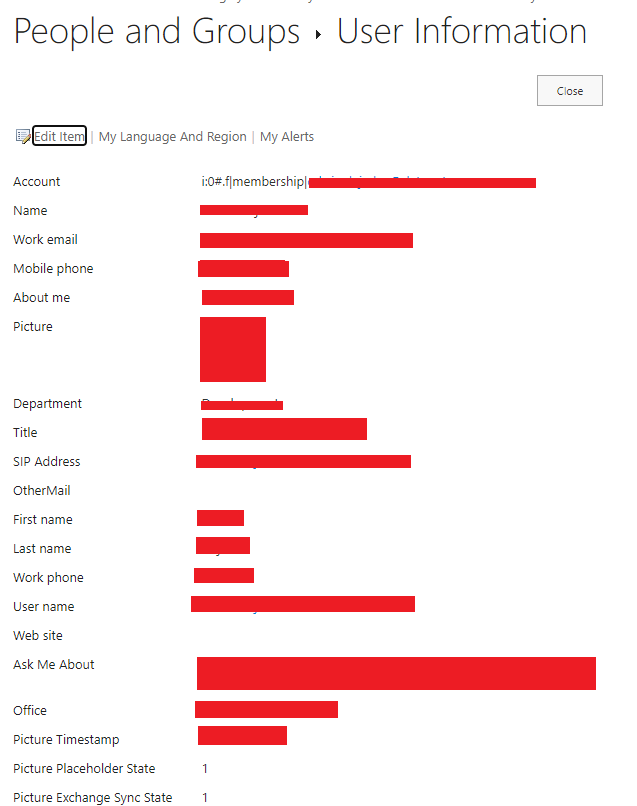
Property Internal Names
| Internal Name | Display Name |
| ID | ID |
| Title | Name |
| Name | Account |
| FirstName | First Name |
| LastName | Last Name |
| Department | Department |
| JobTitle | Title |
| Work-email | |
| WorkPhone | Work Phone |
| MobilePhone | Mobile Phone |
| SipAddress | SIP Address |
| UserName | User Name |
| Office | Office |
| Modified | Modified |
| Created | Created |
Explore also objects already present, like the user properties in SharePoint’s pageContext.
Expanding a multi-value Person field
Everything above covers a single-value Person field like Author/Created By. A Person or Group column configured to allow multiple selections: a “Reviewers” or “Approvers” column, say. Doesn’t return a single object the way CreatedBy does. It returns an array wrapped in a results property instead, the same shape SharePoint uses for any multi-value field, lookup columns included:
/_api/web/Lists/GetByTitle('listname')/Items?$select=*,Reviewers/Title,Reviewers/EMail&$expand=ReviewersReviewers: {
results: [
{ Title: "John Doe", EMail: "John.Doe@mycompany.com" },
{ Title: "Jane Smith", EMail: "Jane.Smith@mycompany.com" }
]
}Code written against the single-value shape (reading .Title or .EMail directly off the property) breaks silently or throws when pointed at a multi-value column, since there’s no single object there to read those properties from, worth checking which kind of Person column you’re actually working with before assuming either shape.
A multi-value Person field doesn’t return a single object like Author does. It returns an array wrapped in a results property, the same shape as any multi-value lookup.
Setting a Person field: the other direction
Everything above covers reading a Person field. Writing to one works differently, and doesn’t use any of the property names covered so far. The internal name gets an Id suffix, and the value is the target user’s numeric SharePoint user ID, not their email or display name:
{
    "__metadata": { "type": "SP.Data.TestListItem" },
    "AuthorId": 12
}
For a multi-value Person field, the shape changes to an object with a results array of IDs. Mirroring the read-side results array covered above, just holding raw IDs instead of expanded objects:
{
    "ReviewersId": {
        "results": [12, 15, 22]
    }
}
Getting the actual user ID to write usually means a separate lookup first, via /_api/web/siteusers filtered by email or login name. There’s no way to set a Person field by email address directly.
A missing email address breaks the expand
One real, documented failure mode worth knowing before relying on the $expand queries above in production: if any user included in a multi-select Person or Group column doesn’t have an email address populated in their SharePoint/Entra profile, the request fails outright rather than just returning a blank EMail for that one person. This shows up most often with service accounts, some external guest accounts, or older accounts that were provisioned without a mailbox, accounts that are otherwise perfectly valid members of a Reviewers or Approvers column.
Selecting fewer properties doesn’t dodge it if EMail is one of the ones requested. If a list is realistically going to include accounts like this, the more defensive approach is expanding a property that’s reliably populated for every account type (Title or Name, rather than EMail) for the initial read, and treating a missing email as something to look up separately, on demand, only for the accounts that actually need it, rather than letting one incomplete profile fail the whole query.
Worth finding out which accounts are actually affected before this shows up as a confusing production error: query /_api/web/siteusers?$select=Title,Email,LoginName against the site directly, and filter the results locally for a blank Email. That gives a concrete list of the accounts that will break an $expand query if they ever end up in a Person column, rather than discovering it the first time a real item happens to reference one of them.
Expanding People metadata with PnP
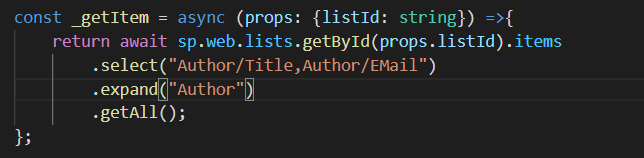
Custom development with SharePoint is made much easier with the help of PnP. Below is how to expand People metadata with it, a simple function that returns a list item’s Author name and email, using current PnPjs syntax (the spfi() factory, which replaced the older import { sp } from "@pnp/sp" pattern in PnPjs v3+):
import { spfi } from "@pnp/sp";
import "@pnp/sp/lists";
import "@pnp/sp/items";

const _getItem = async (props: {listId: string}) => {
    const sp = spfi();
    return await sp.web.lists.getById(props.listId).items
        .select("Author/Title,Author/EMail")
        .expand("Author")
        ();
};
Related reading
- Actually, It’s Already In The SharePoint PageContext!. Another place user properties are already available without an extra query.
- SharePoint Metadata: What You Need to Know. Broader background on metadata types beyond People columns.
- How to Create Item using Send An HTTP Request to SharePoint. The same Lookup/Person Id-suffix write pattern covered above, applied to creating a brand-new item instead of updating an existing one.
Now that’s another tip! Hope it helps somehow. Let me know if you have questions, or leave a comment if we missed something.
Happy SharePointing! #SharingIsCaring
App Catalog Archives Automation Backup Compliance Content Type CSS Dataverse Google Governance Javascript Limitations Metadata MFA Microsoft Migration ModernScriptEditor Node NodeJs O365 OneDrive Permissions PnP Policy PowerApps Power Automate PowerAutomate PowerPlatform PowerShell Rest Endpoint ScriptEditor Security Send an HTTP Request to SharePoint SharePoint SharePoint List SharePoint Modern SharePoint Online SPFX SPO Sync Tags Teams Termstore Versioning Workflows